User Guide for HOD or Coordinator
Amrita Publication Tracking Portal
About Portal
The portal is internal to Amrita. Users who don’t have an Amrita email address or direct login to PTP will not be able to see or edit any information, in the portal.
The PTP will be accessible only through AUMS(eventually). All the pages will be checked for login status, if not logged in, prompt to login, without showing the details of the webpage.
The web crawlers will be restricted from crawling the site. Appropriate robot configuration will be maintained.
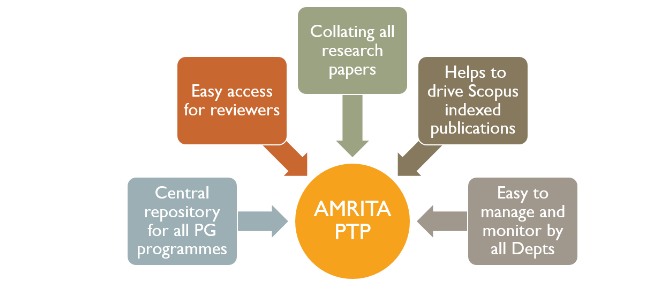
Benefits
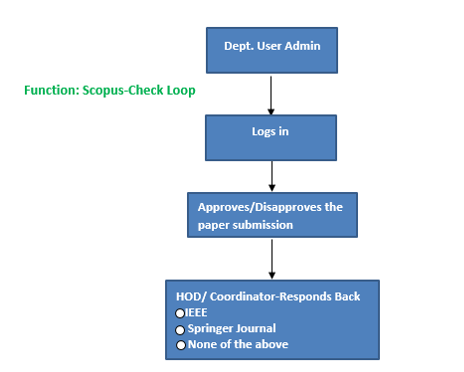
PTP Work Flow- For HOD/Coordinator
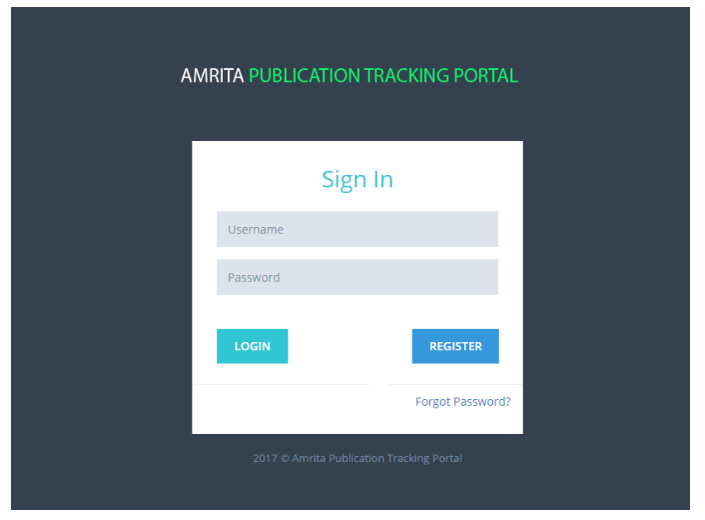
Login Screen
The Amrita Publication Tracking Tool can be accessed using the URL below.
https://ptp.amrita.edu
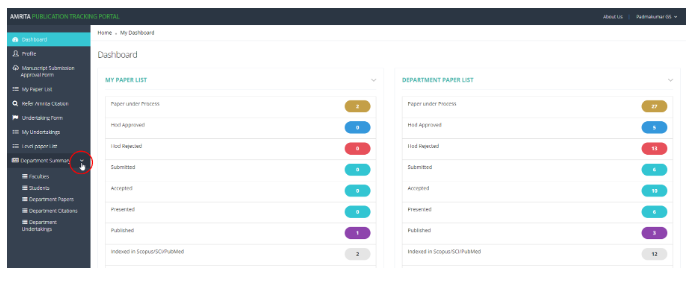
HOD Dashboard
Faculty List with paper details
Click on the “Department Summary” >> “Faculties”
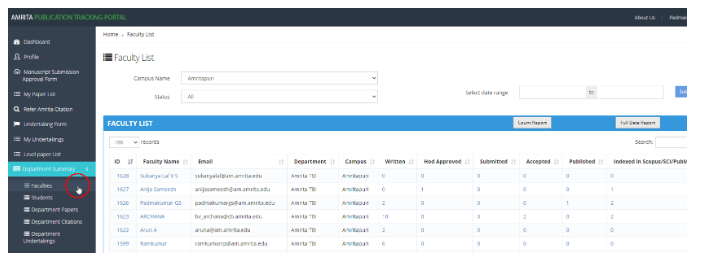
Select a faculty who have written paper
Watch who all have approval form under “Written” status
To view the submission form waiting for recommendation click one of the faculty name to see the list of papers under that faculty
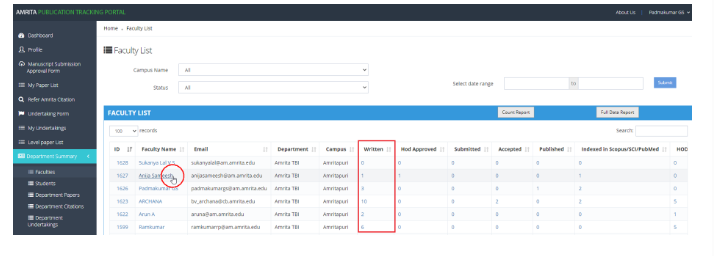
Select the research paper
Click on the paper title with status as “Written” to view the details.

HOD Recommendation
HOD verifies all the relevant data, and If HOD/Publication coordinator approves the submission, then the author can go for the submission.
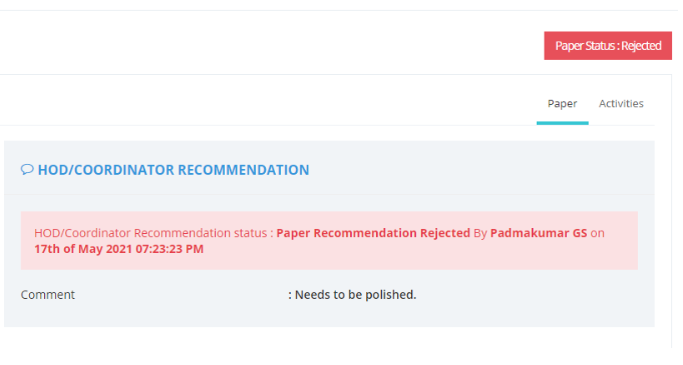
If the HOD/Publication coordinator rejects the paper. Then the user has to go the paper and revise it based on the HOD/Publication coordinator’s suggestions.
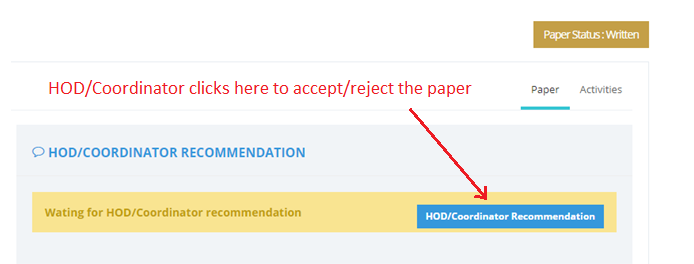

HOD Approved
Once the HOD/Coordinator approves, the status will get changed to “HOD Approved” at the applicant user side.

HOD recommendation Rejected
If the HOD rejects the recommendation, the applicant user will get an option to revise the application and resubmit it as a new paper, for the HOD recommendation.
Second level Recommendation
Once the HOD approves, the application form needs to go through a second-level recommendation.
The second-level recommendation is usually done by the Dean / School Admin.
